Three steps, start to finish
Create a free Learner account, pick a course, then enrol. Pay with PayFast, or redeem a voucher code from your facilitator. That's it.
Register as a Learner
Create your account
- Go to swymetric.co.za/app and tap Create account
- On “What brings you to Swymetric?”, choose “I'd like to do a training course”, then tap Choose this Option
- Enter your name, email address, and a password
- Fill in your ID or passport number, your race, and your gender
- Read the Privacy Notice, tick the consent box, then tap Create Account

Confirm your email
- We'll email you a 6-digit code
- Enter it on the confirmation screen
- That's it, you're in, and you'll land straight on the Learning tab
Choose a Course
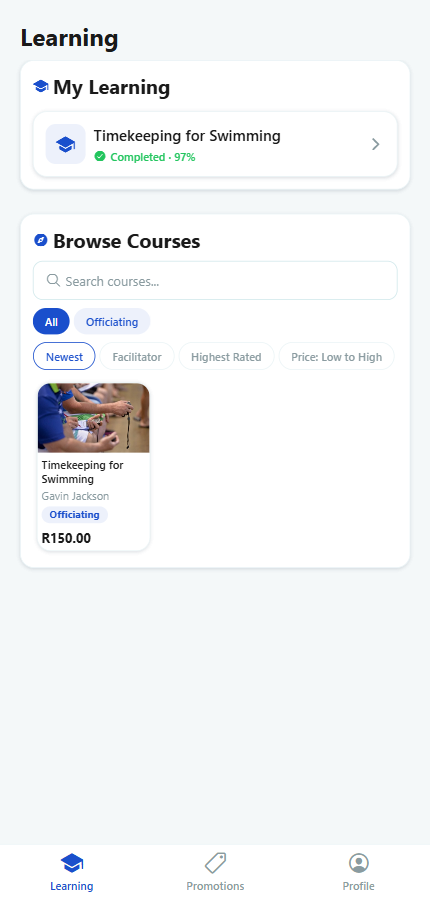
Browse the catalogue, search by name, or filter by category. Every course shows its facilitator, price, and what you'll learn before you commit.
Find the right one
- On the Learning tab, browse or search Browse Courses
- Tap a course to see the full description, modules, and facilitator details
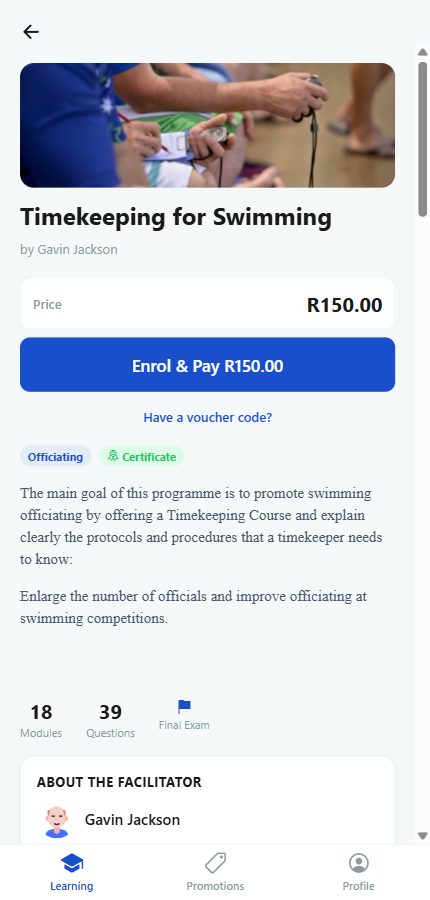
- The price and the Enrol & Pay button sit right at the top of the page, so you always know what it costs first
Two Ways to Enrol
Every paid course can be unlocked either way. Pick whichever applies to you.
Pay with PayFast
Pay for the course yourself, securely, right from the app.
Secure PayFast checkoutRedeem a Voucher
Enter a code your facilitator gave you. No payment needed.
One code, one coursePaying with PayFast
The default option for anyone paying for their own course.
- On the course page, tap Enrol & Pay
- You'll be taken to PayFast's own secure payment page. Swymetric never sees or stores your card details
- Complete your payment on PayFast's page
- You're redirected back into the app. Your course usually unlocks within a few seconds while we confirm the payment with PayFast
Redeeming a Voucher Code
For when a facilitator has already arranged your course access.
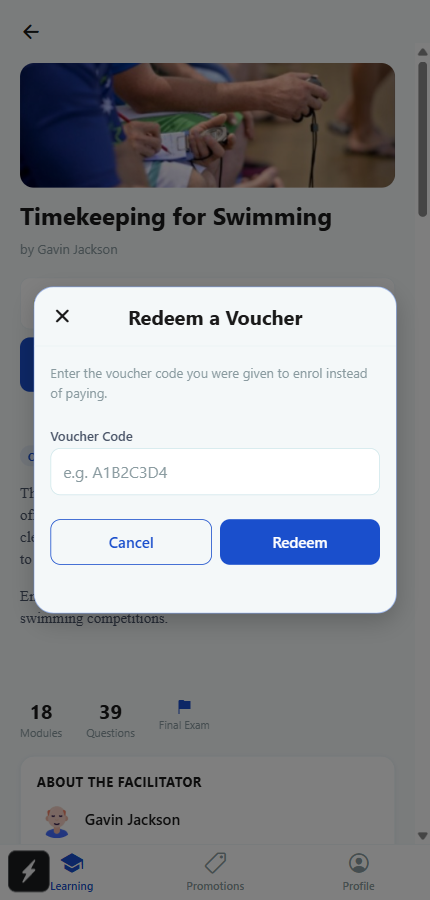
- On the course page, tap Have a voucher code?, just below the Enrol & Pay button
- Enter your code, for example A1B2C3D4, and confirm
- If it's valid, you're enrolled straight away. No payment screen at all
Where do I get my voucher code?
Voucher codes are provided by the course facilitator or the school, club, employer or organisation that arranged your enrolment.
Each code is linked to a specific course and cannot be used for any other course.
Swymetric does not issue voucher codes directly. If you have not received yours, please contact the person or organisation arranging your course.
Having trouble with your code? Double-check that you are using the correct code for your course. If it is still not working, the person who provided it will be able to help.
Start learning
- Head to My Learning to see everything you're enrolled in
- Work through the modules at your own pace
- Pass the final assessment to earn your certificate, if the course offers one
Need a hand?
Payment didn't go through, or your voucher code isn't working? Contact your facilitator for anything voucher-related, or reach Swymetric support below for anything else.